2. Connecting WhatsApp
Two minutes in Meta's own window, once you have a number that is free to use.
Messages your clients send you on WhatsApp land in your Inbox, and replies go out from there. You do this one yourself: Connect opens a window belonging to Meta, you choose your account and number inside it, and the row is live when you close it. Nobody has to be invited and there is nothing to wait for.
It is also a connection of its own. Connecting WhatsApp does not connect Facebook, and connecting Facebook in the Social panel does not connect WhatsApp.
Step 1 — A number that is free to use
One condition, and it is the only thing that can stop this. The number must be:
- not in active use in the WhatsApp app on a phone — a number works either in the app or in a business system like the Desk, never both, and past chats stay on the phone, and
- not already connected to another provider or tool.
No spare number? Create one during the connection itself — Meta verifies it by SMS and it stays yours.
Number already in use somewhere else? Write to us and we will move it across with you. Releasing a number from a provider is done on their side, which is why this one is not self-serve.
Step 2 — Connect it
On Channels, press Connecton the WhatsApp row. A Meta window opens — everything from here is Meta's, not ours. Press Continue.
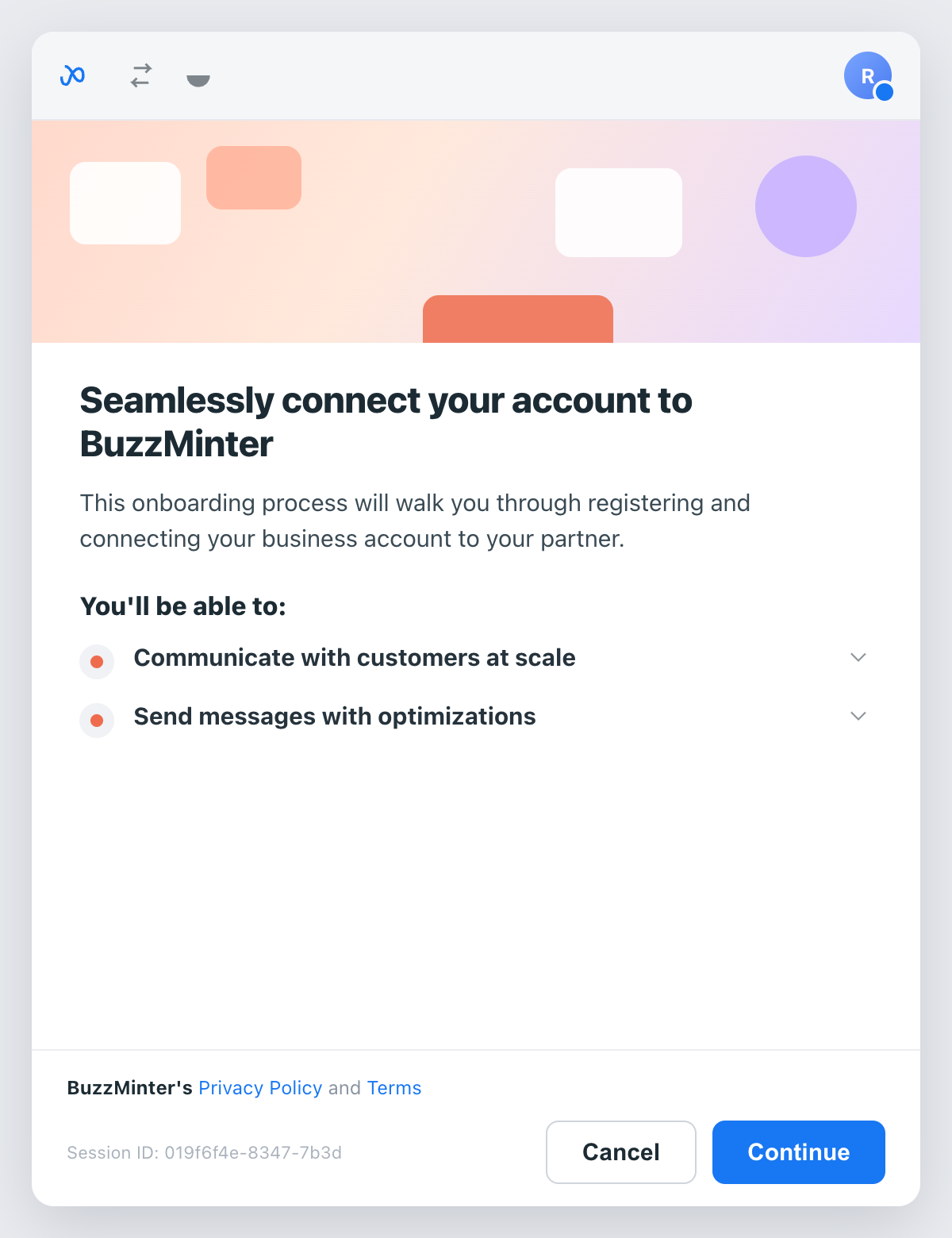
Your business and WhatsApp account
Pick your Business portfolio, then the WhatsApp Business account holding your number — or Create a WhatsApp Business account if there is none yet. Press Next.
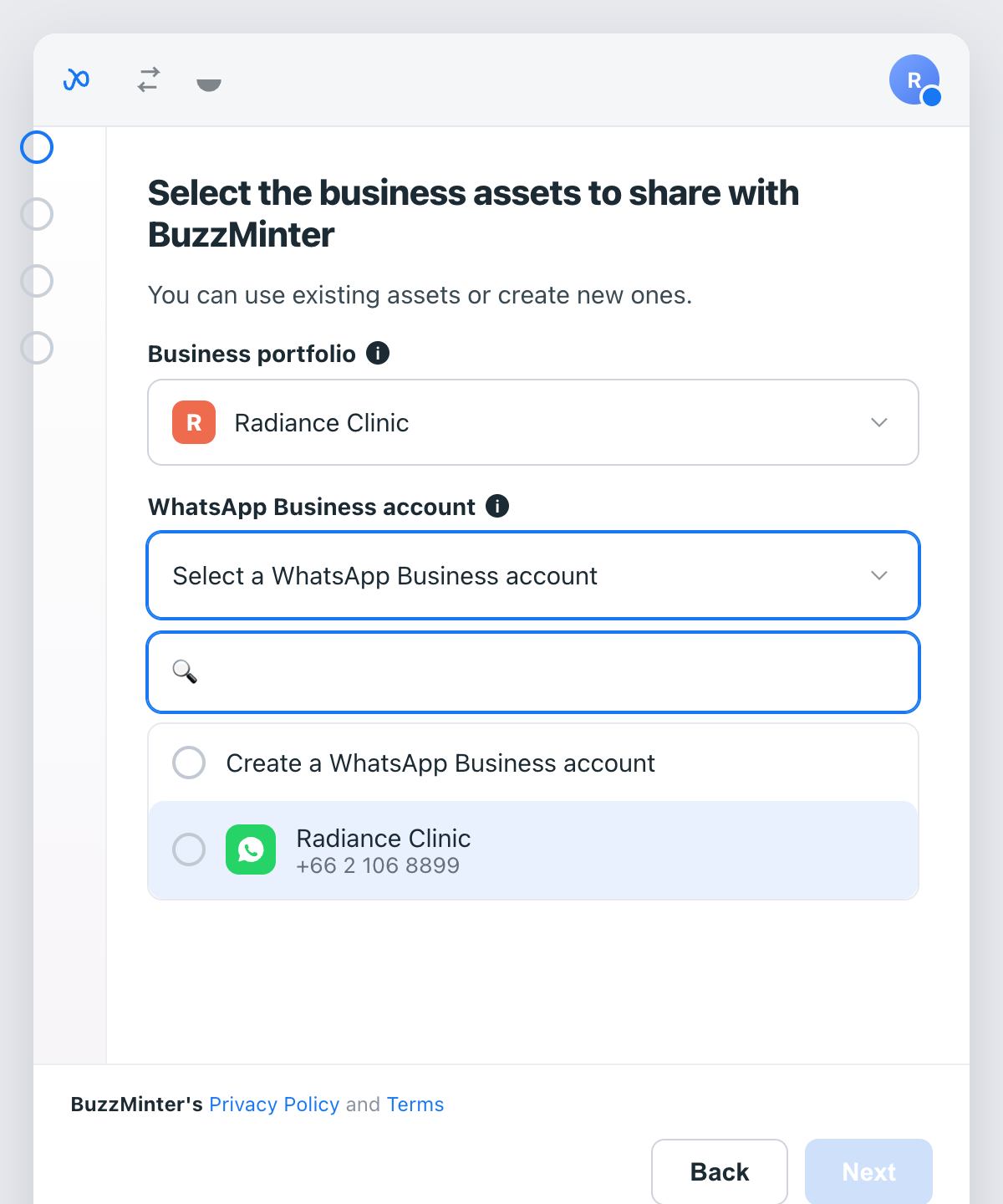
Your number
Keep Use a new or existing WhatsApp number and pick yours from the list; one you already own shows as Registered. For a brand-new line, choose Add a new WhatsApp number and verify it by SMS. Press Next.
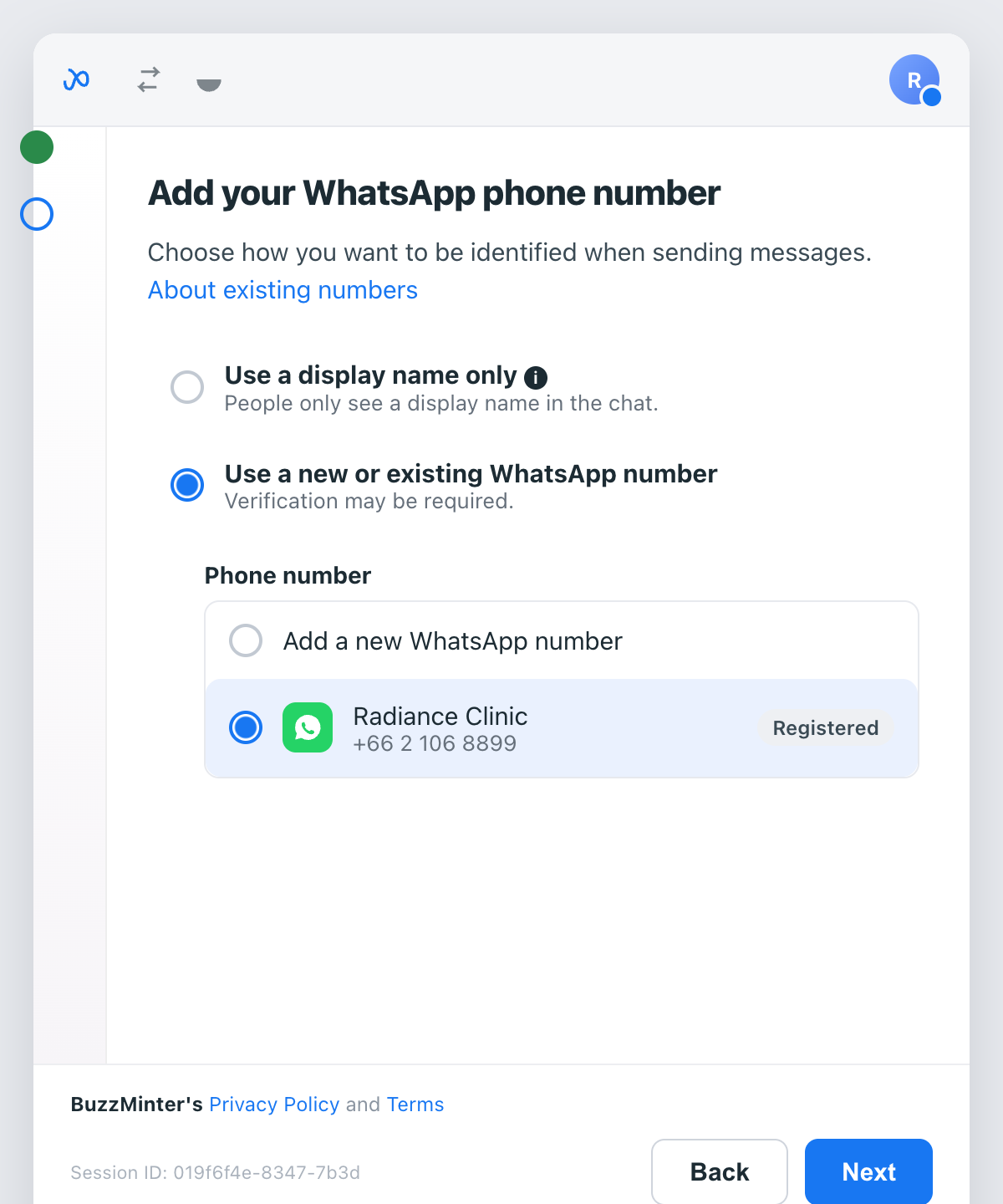
What you are granting
Meta lists it plainly: messaging access to that WhatsApp Business account, which is what lets messages reach your Inbox and replies leave it. Press Confirm, then Finish.
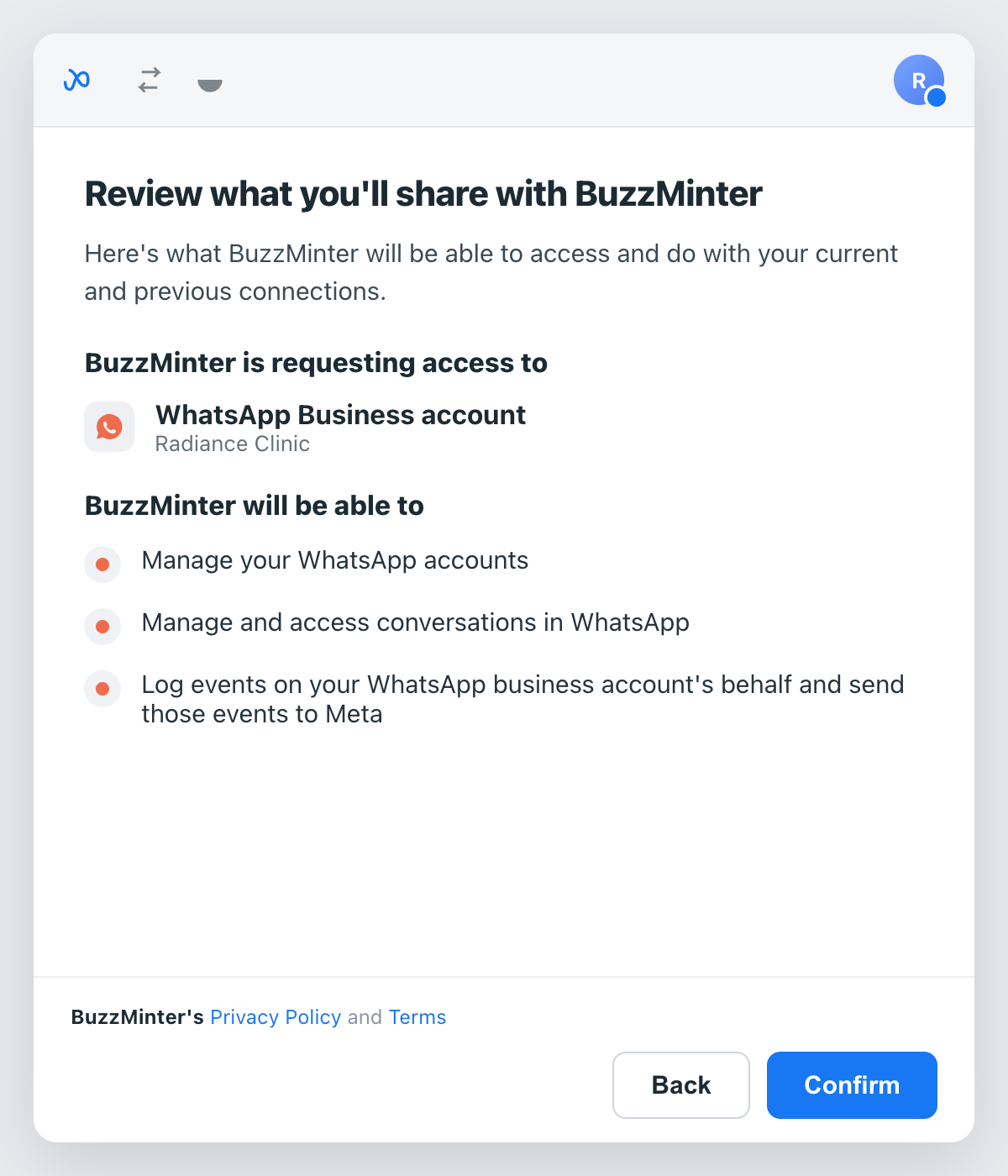
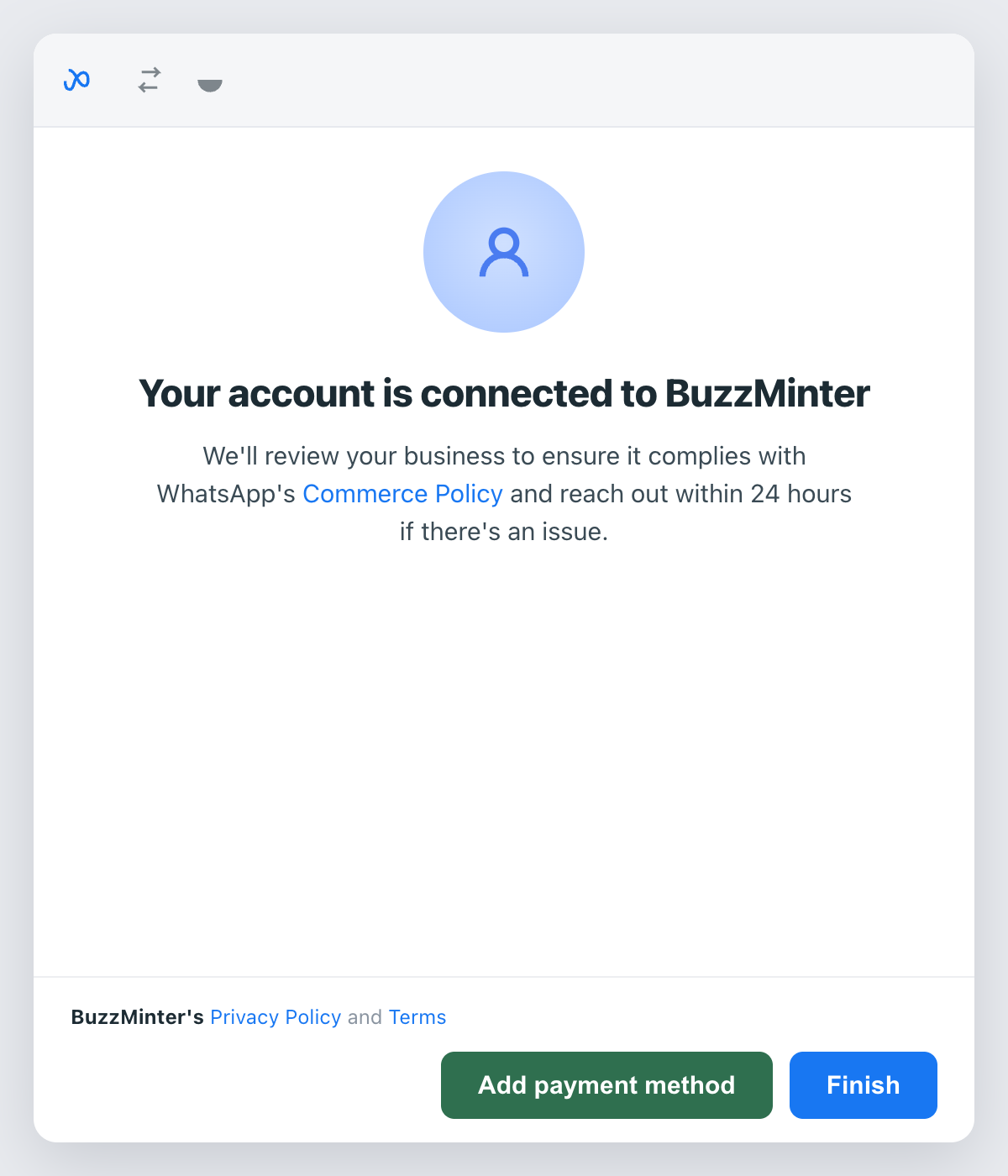
Back on Channels, the row shows your number and messages start arriving in the Inbox. Do not finish the Meta window without picking a number: without one there is nothing to connect, and the page says so.

The 24-hour window
WhatsApp lets you write freely for 24 hours after the client's last message. That is Meta's rule and it applies to every business on WhatsApp. Past it the Inbox replaces the reply box with a single button that sends an approved reopener, and a normal conversation resumes as soon as the person answers. The templates behind that button are provisioned for you when you connect, in every language the workspace uses.
If the row says reconnect
Reconnect needed means the number reads as connected here while the messaging platform no longer holds the account behind it. Press Reconnect and run this same window again; your conversations and contacts are untouched.