Payments
What a booking asks a client to pay, and where that money goes.
Payments is how your practice takes money from its clients: how it is paid, and what a booking asks for. It is not Billing, which is your own subscription to Moshivo. Two tabs, in that order — Payment method decides what Deposits can even offer.
Payment method
One method at a time, because the payment page has to show a client one thing. Choosing between them is what reveals that method's own settings underneath; the other disappears.
- Custom payment link — a link you paste, be it your own payment page, another provider or an invoice. We send the client there, and someone at the desk marks the booking when the money arrives.
- Stripe — your own account. Clients pay by card, and by PromptPay where your Stripe account carries it. The payment confirms itself and the money lands with Stripe, never with us. Online payments are part of Growth; below that the option is greyed and says so.
A single booking can also carry a link of its own, set on the appointment. It wins over both.
Connecting Stripe
Pick Stripe and its panel appears with two fields. Paste your secret key, and paste the webhook signing secret for an endpoint you add in your Stripe dashboard pointing at the address printed under the field — copy that address rather than building it, it carries your workspace id. Then press Connect.
The webhook is what marks a payment paid. Without it a client can pay and the appointment still reads as awaiting payment; the panel says so in as many words when it is missing.
Connecting is also choosing: a key stored while the workspace stays on the other method would be a click that did nothing. The key is verified before anything is saved, and the header then shows the account it belongs to, whether it is a Test or a Live key — four characters separate them, and the difference is whether a demo charges a real card — and whether PromptPay is available.
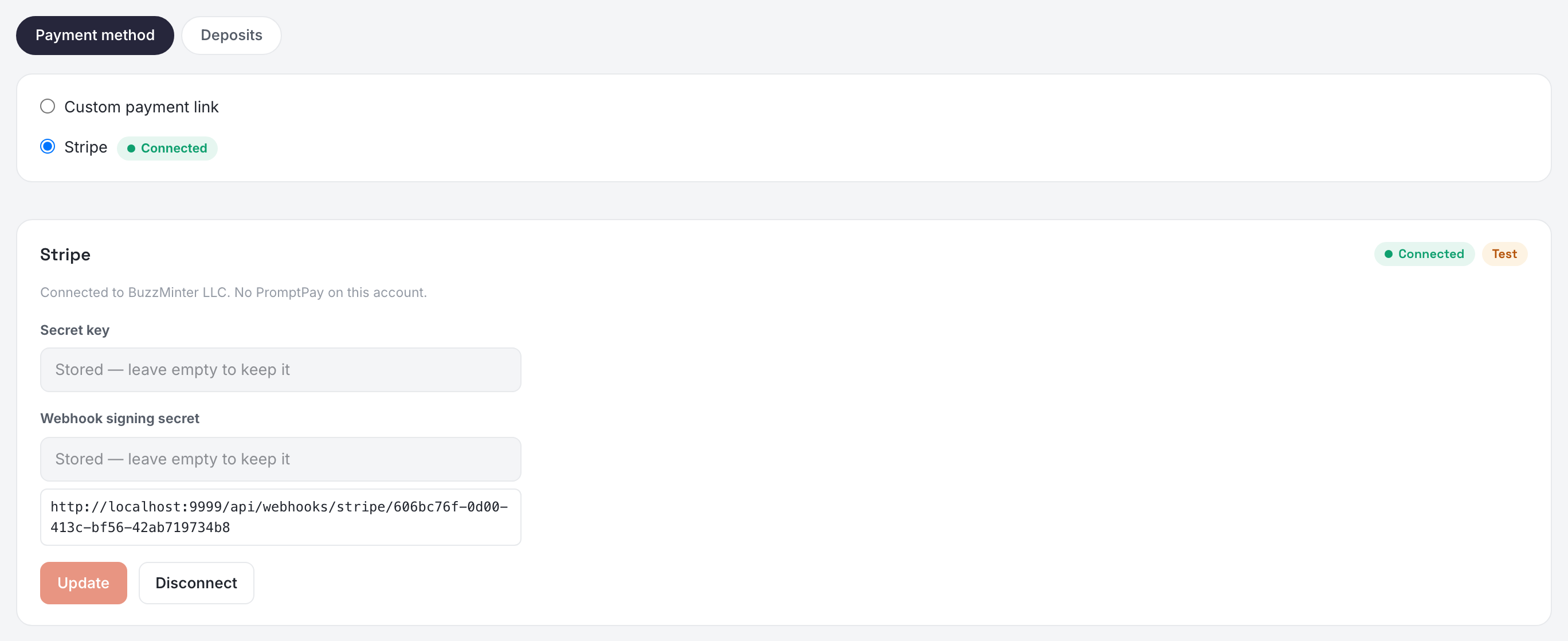
Afterwards the button reads Update and is inert until you type something: it is how you rotate a key, not something to press to stay connected. Disconnect drops the key and returns the workspace to a custom link.
Nothing else needs configuring. Your services are never copied to Stripe: the amount is created the moment the client opens the payment page, so changing a price or a deposit changes what is asked straight away, with nothing to update on their side.
Two behaviours are worth knowing. PromptPay settles a moment after the client scans, so a payment can be briefly pending after they come back — it resolves on its own. And a payment later refunded or disputed returns to awaiting payment, because what was collected no longer is.
Deposits
One switch at the top — Ask clients to pay when they book — and everything else appears under it. A new booking can ask for nothing, for a deposit, or for the full price. A deposit is either a fixed amount or a share of the price. The share is what most clinics think in, and it needs a fallback amount for services priced on request, which have no price to take a share of. This tab has its own Save.
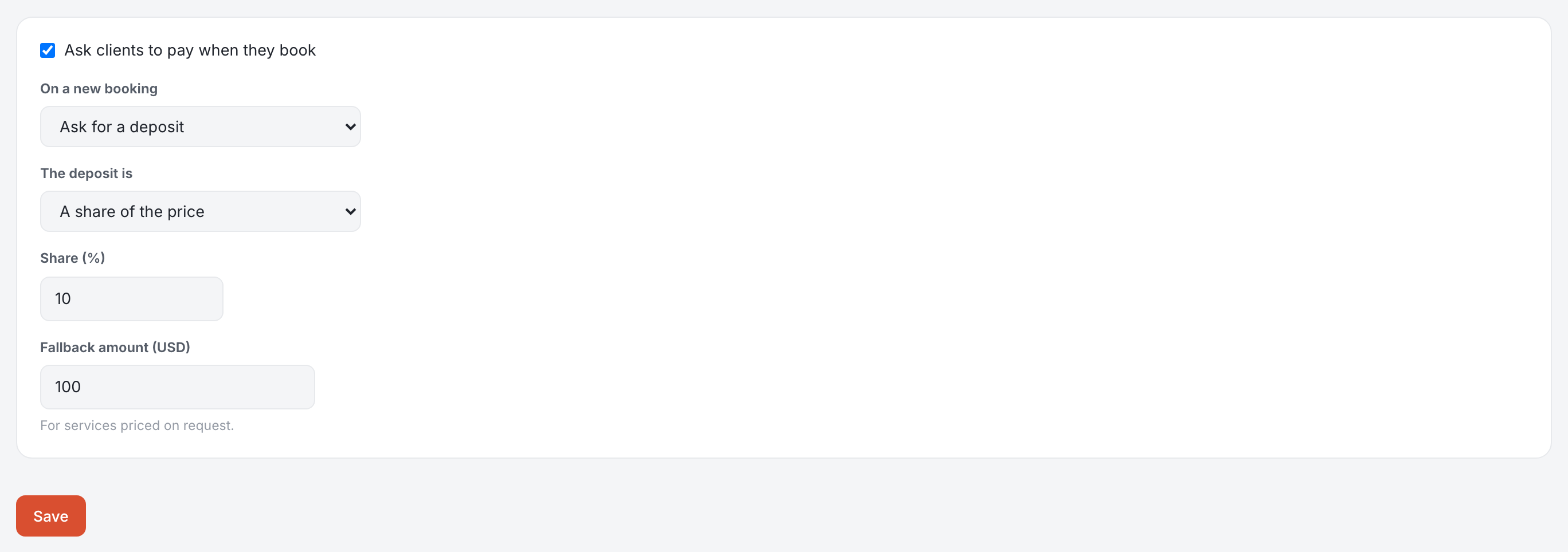
Any service can override all of it from Services: no deposit at all, or an amount of its own. Left alone it follows what is set here.
Deposit, balance, or the whole thing
A booking can be asked for a deposit and, later, for the balance. Each is its own line with its own amount, date and reference, so an appointment shows what was asked, what arrived and what is still owed. The balance is offered only when the price leaves one, and asking for it is always a deliberate action from the appointment — nothing is ever charged on a schedule.
It is all followed on Appointments, under Payments: what is still to ask, what the client has been asked for, what arrived as a deposit and what was paid in full.