Getting started
The six steps between signing up and your first booking.
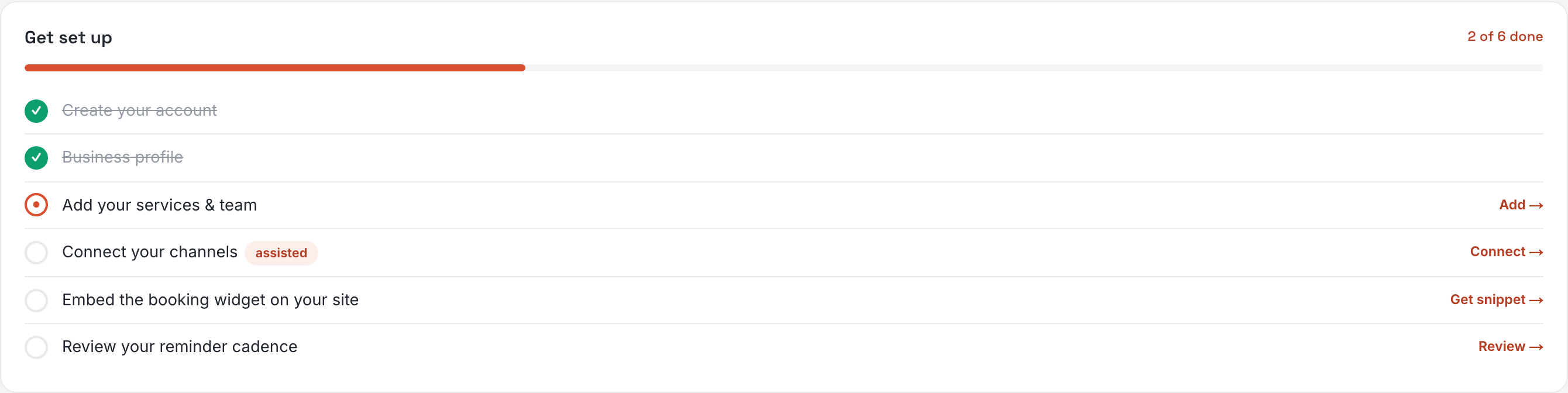
Six steps stand between signing up and taking your first booking. The Get set up checklist on your Cockpit tracks them, and disappears for good once they are done. This page is that checklist, in the same order, with what each step needs and what makes it tick. Each one happens once.
Add a payment method
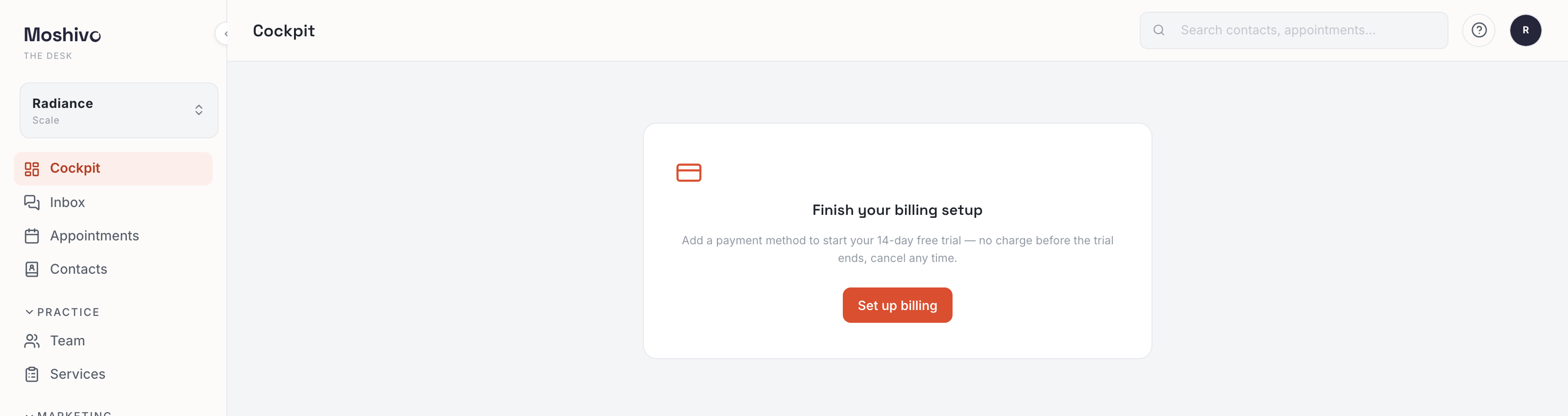
Before the desk opens, one screen asks for a card. Your 14-day free trial starts there: nothing is charged before it ends, and you can cancel any time from Billing. This is a gate rather than a checklist item, which is why you will not find it among the six.
Create your account
Already done: it is the account you signed up with. It sits in the list so the checklist starts on something achieved rather than on six things outstanding.
Business profile
Your name, address, timezone and opening hours, on Business. Small screen, wide reach: the timezone decides what “tomorrow at 2pm” means in every reminder, and the opening hours decide which slots a client is ever offered.
Ticks whenit was filled in at signup, so it usually arrives already done.
Add your services & team
What you offer, on Services — each with a duration, a price and who can deliver it. Then your practitioners and their weekly hours on Team.
These two are what a bookable slot is made of. A service with no practitioner, or a practitioner with no hours, produces nothing to book — which is the usual reason an otherwise finished setup still offers no times.
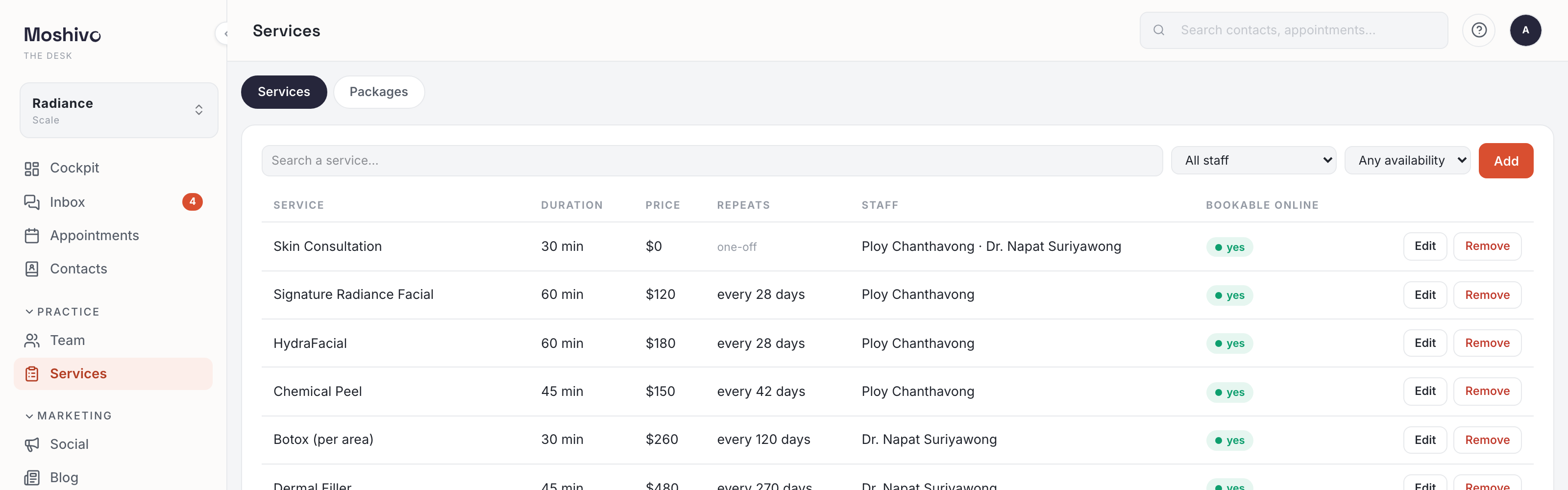
Ticks whenyour first service exists. The team side is not counted, so add both.
Connect your channels
Where your clients already write to you, on Channels. WhatsApp takes about two minutes and you do it yourself. LINE is finished with your Moshivo specialist — which is what the assisted badge on this step means. Instagram and Messenger come through your Facebook Page.
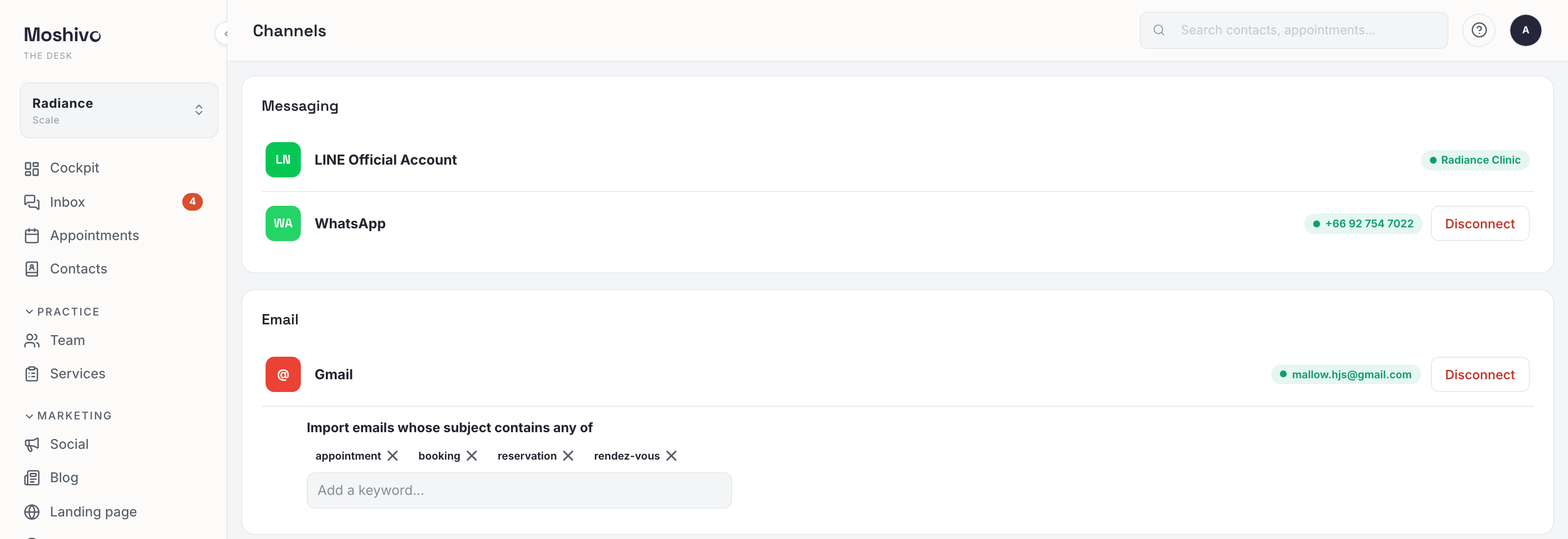
Ticks whenthe FIRST channel is connected, a LINE request still in progress included. Connect the rest at your own pace; the step will not un-tick.
Embed the booking widget on your site
One line of HTML, copied from Agent and pasted into your website. It puts your services, your calendar and your assistant on your own pages — see the Agent guide for what it can answer and how to teach it.
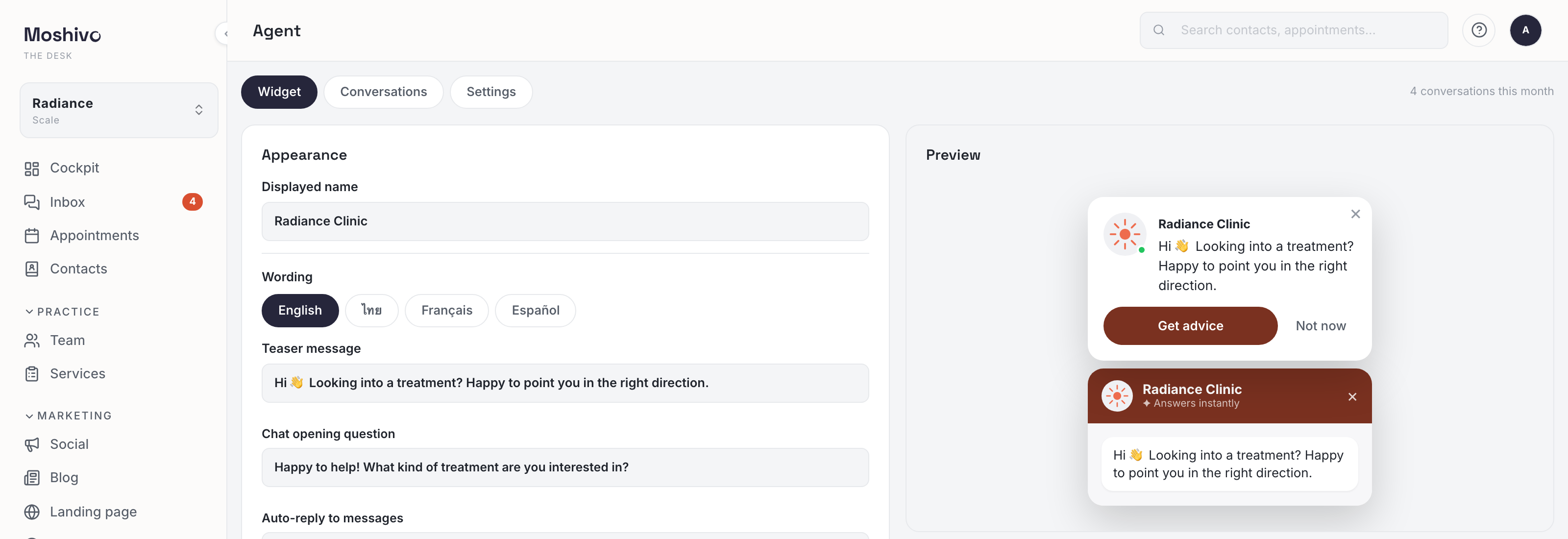
Ticks whenthe widget actually loads on your site and asks us for your services — not when the snippet is copied. If you have pasted it and this step is still open, open the page in a browser once and it will tick.
Review your reminder cadence
When we write to a client before and after a visit, on Reminders. You arrive with a working cadence already in place — this step asks you to read it and agree, not to build it.
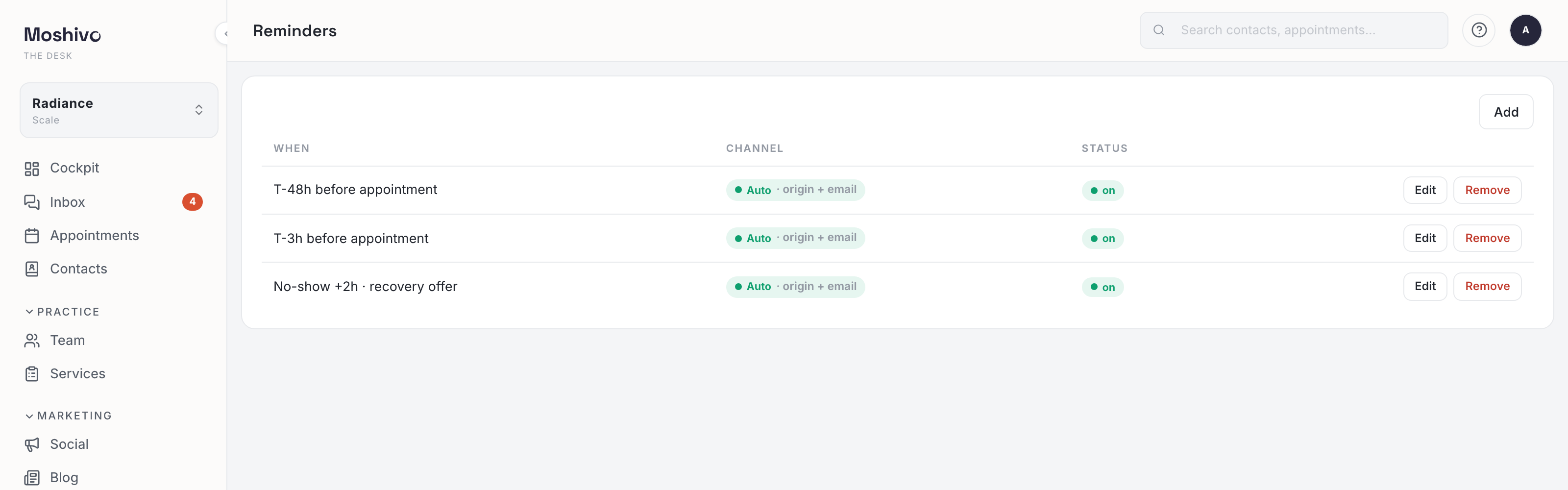
Ticks whenyou press save on the page, even if you changed nothing. Reminders only start going out once a messaging channel is live.
You are live when
a client can reach you on a connected channel or through the widget, the assistant can answer from what your Business profile and Services say, and a booking lands on a practitioner who has hours. From there the Cockpit starts telling you how it is going.