Landing page
The page we design for you, and how it changes afterwards.
Landing page is a conversion page we design and host for you at your own address — yourname.moshivo.com, or a domain you own. It presents your business and sends visitors into your booking flow, so a link in a bio, an ad or a QR code lands somewhere that actually takes appointments.
It is not a page builder, and this screen is not an editor. You answer a brief; our team designs and writes the page from your answers and from what is already in your workspace — your treatments, your team, your articles.
The four stages
The bar at the top of the page says where yours stands. Your brief — you answer the questions. We build it — our team designs and writes it. Your review — we send it over on a private link. Live — it is online at your address. Only you can move it from review to live: approving is what publishes it.
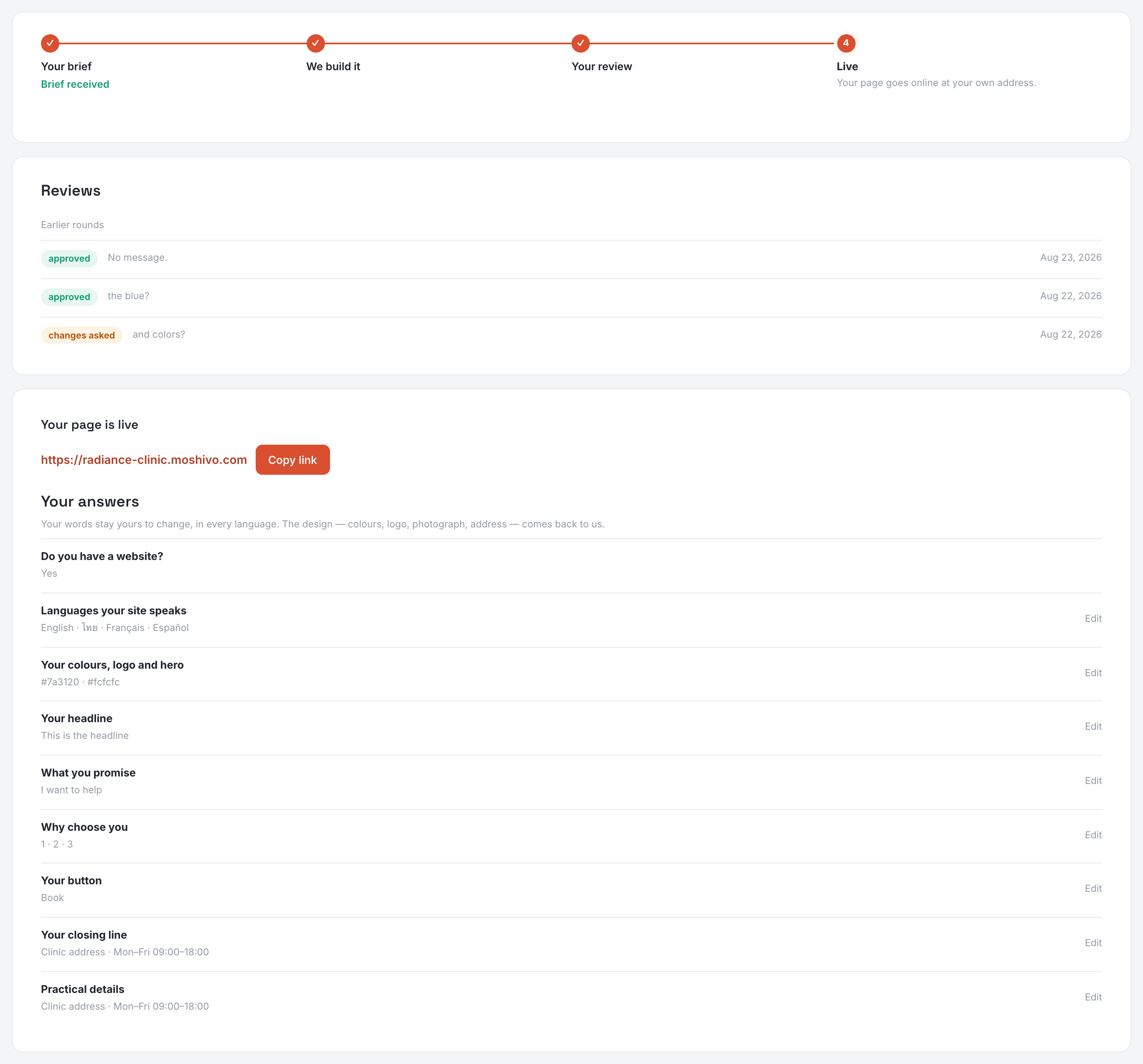
Your brief
One question per screen rather than one long form, and every step saves as you go, so you can leave and come back where you stopped. The copy questions are asked once per language you publish in.
- Do you have a website? — if you do, the address, so we can follow your existing colours and tone.
- Languages your site speaks — asked before the copy, because it changes what the copy is for: each language gets its own address and a switcher on the page, and your treatments and your team are then asked for in those languages too, from their own screens.
- Your colours, logo and hero — two hex colours, your logo, the tab icon and the photograph the page opens with. One tick stops your name being written beside a logo that already spells it out — on the page and in your client emails.
- Your headline, what you promise, and up to three reasons to choose you.
- Your button — what the booking button says. Optional; empty means "Book an appointment".
- Your closing line — the band under your blog, the last thing a visitor reads. Optional.
- Practical details — your address and your opening hours. Optional.
Your review
When the page is ready you get a private preview link and, beside it, what we did in this round. Then two answers: Approve & publish, which puts it online at once and for good, or Request changes, which sends your words back to the team and starts another round. Every round stays listed under Reviews, so what was asked for and what was done can be looked up later.
Changing your page once it is live
The brief stays on the screen as a read-back of your answers, and almost all of it is still editable in place — your languages, your look, your headline, your promise, your reasons, your button, your closing line, your address and hours. A practice that rebrands, moves or changes its hours must not have to ask us to say so.
The one question that closes is "Do you have a website?" — it was a question about designing the page, and it stops applying once the page exists. Anything that is not one of your answers, a new section or a different layout, is a change to the design and reaches us through support rather than through the brief.
Your legal pages
Beside the brief, not inside it: a policy arrives weeks later from a lawyer, and asking for it in the middle of the questions is what made the brief feel long. Leave both empty and your site writes its own legal notice and privacy policy from what it knows. Paste your own and they replace them, one language at a time.
Your own domain
Your page always answers at yourname.moshivo.com. Add a domain you own under Your own domain and it answers there too. Two steps, both shown on screen with the exact records to publish: a TXT record proving the name is yours, then a CNAME pointing it at us. It shows Awaiting DNS until it can see them, and Verified after. A domain with no sub-domain (clinic.com) cannot take a CNAME at most registrars — use an ALIAS or ANAME record, or point www at us instead.

Both addresses keep working. One is marked primary and is the one search engines are told to index, so the same page never competes with itself.
Your tags
If you already measure your traffic or run ads, add your ids under Your tags: Google Analytics 4, Google Tag Manager, the Meta pixel and the TikTok pixel. Ids only — we never accept pasted code, because a container pasted into a page we serve under your name would be a script we cannot vouch for.
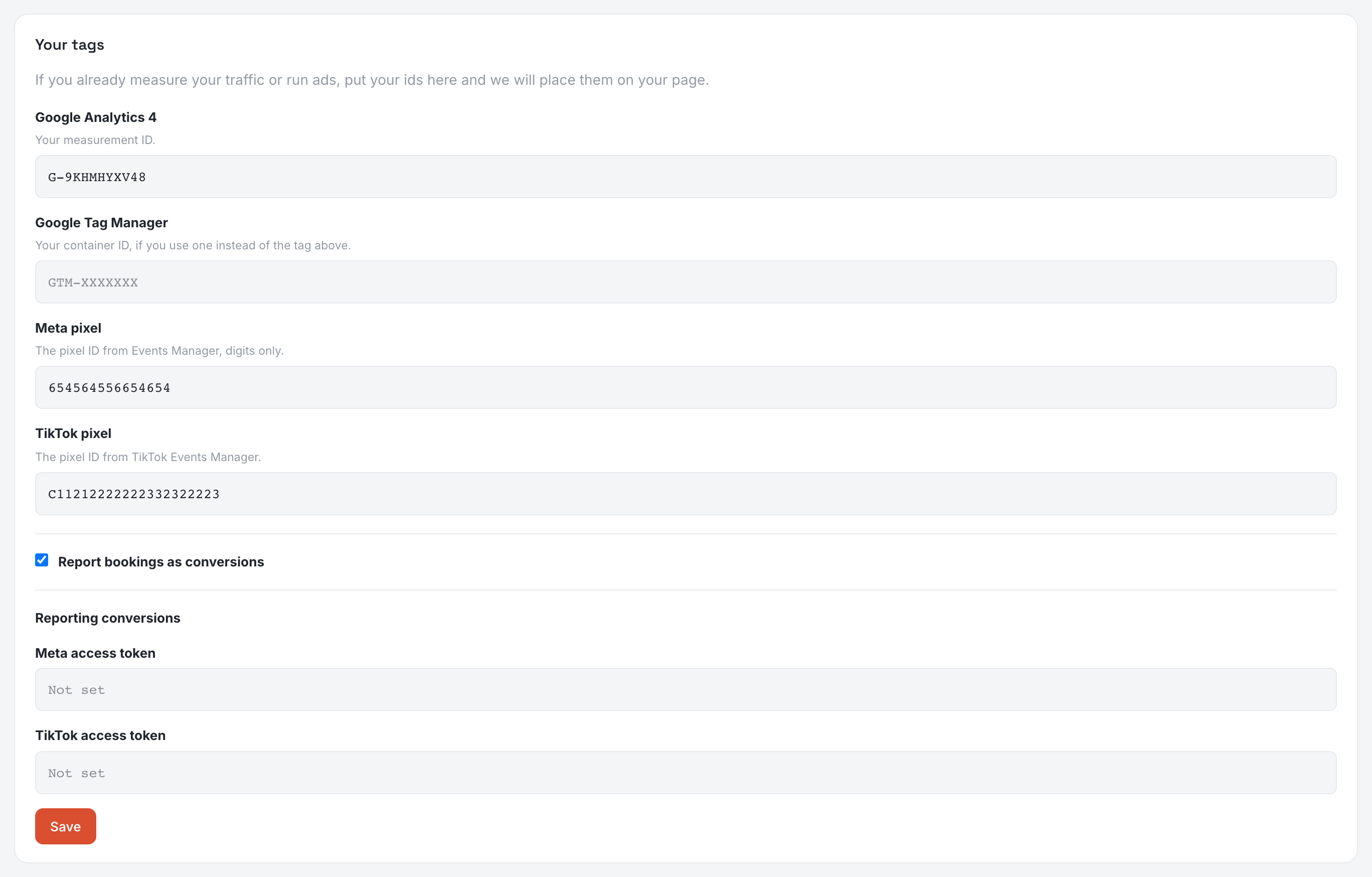
What you add decides what your page asks visitors. With nothing, it asks one plain question about our own visit count. A Google tag and that same question now covers a third party. A Meta or TikTok pixel and a second question appears, because advertising is not measurement and cannot ride on the same yes. Nothing is loaded until the visitor has answered.
Reporting bookings as conversions
A pixel on its own reports a click. That is an intention, and a platform told only that will optimise for people who open your booking panel and leave. So we report the booking itself, and later the appointment that was attended.
- When somebody books, your page tells Meta and TikTok directly, and records the event in Google Analytics.
- When the appointment is marked kept, we tell Meta and TikTok from our side — a visit is not something a browser can see, because it happens days later and in your clinic.
- For Google, there is nothing more to install: mark the event as a conversion in Google Analytics and link Analytics to Google Ads, and your bidding has it.
Reporting from our side needs one access token per platform. The fields appear once the matching pixel is set, they are stored encrypted and never shown again — the panel only says whether one is saved.
- Meta — Events Manager, open the data source that holds your pixel, then Settings. Under Conversions API, Generate access token. It is shown once.
- TikTok — Events Manager, open your pixel, then Settings and Generate access token under the Events API section.
Without a token nothing is lost: your pixel still reports the click. What the token adds is the half a browser cannot see.
Report bookings as conversions can be switched off entirely. Your tags keep measuring your traffic; the platforms simply hear nothing back. It is on by default, because a pixel that never learns what worked is doing half its job.
Two things happen on their own and are worth knowing. A booking is only ever reported when the visitor allowed advertising on your page — their answer travels with the booking, so a report sent three days later still respects it. And the same booking carries one id everywhere it is reported, so what your page sends and what we send count once, not twice.
Cookies
The page counts visits and clicks on the booking button, and nothing else — no advertising network, nothing that identifies a visitor. A small bar asks each visitor whether that count is allowed, and refusing genuinely stops it. The answer is kept on their own device, so the page still sets no cookies, and it can be changed at any time from the button in the corner or the link in the footer.
Your numbers
Visits, how many visitors went on to start a booking, which pages they read and where they came from are on the Cockpit, under your weekly appointments — they answer "how did the week go", not "what should my page say", which is what this screen is for. There is no tracking script to install and no third-party account to create.
Connecting attaches every Facebook Page your account can reach, which is not always the one you picked: Meta does not tell us which you ticked. Press Pages next to Disconnect on Channels to see what is attached, and switch off any Page whose Messenger and Instagram messages should not arrive here.
The landing page is part of the Growth plan.